
- Enter your UMPASS user ID and password to sign in to Outlook Webmail (OWA) – https://staffmail.um.edu.mo .
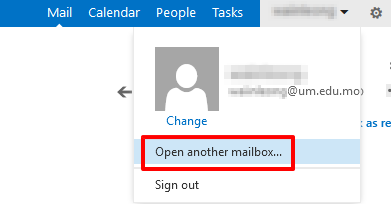
- On the Outlook Webmail navigation bar, click on your name and then select “Open another mailbox”.
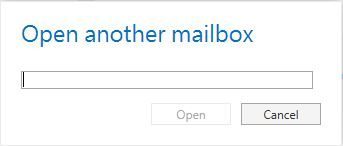
- Type the email address of shared mailbox and click “Open”. Another Outlook Webmail session will open in a separate window.
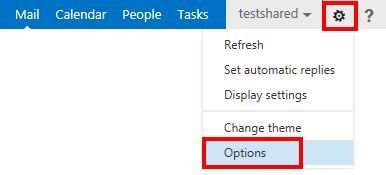
- At the top of the page, select “Settings”
 icon > “Options”.
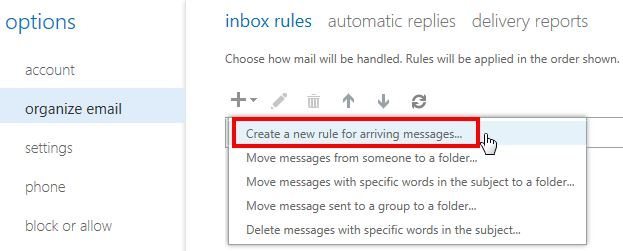
- Select “organize email” > “inbox rules” > “New”
 icon> “Create a new rule for arriving messages”.
- In the pop-up windows, type a name for your rule.
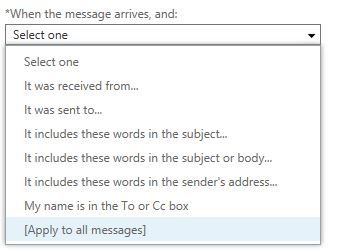
- Under “When the message arrives, and”, select “[Apply to all messages]”.
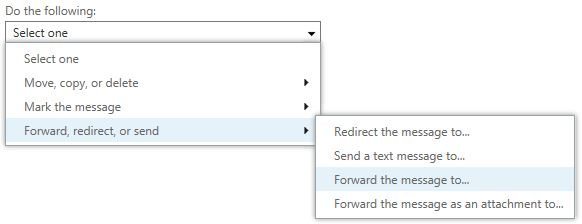
- Click “More options”, under “Do the following”, select “Forward, redirect, or send” > “Forward the message to”.
- Enter the email address in the “To” box, or choose it from your list of contacts.
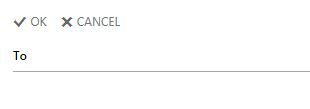
- Choose “OK” to save your selections, and click “Save” to create the rule.
Below instructions show how to create a mail rule to forward all emails to another account.