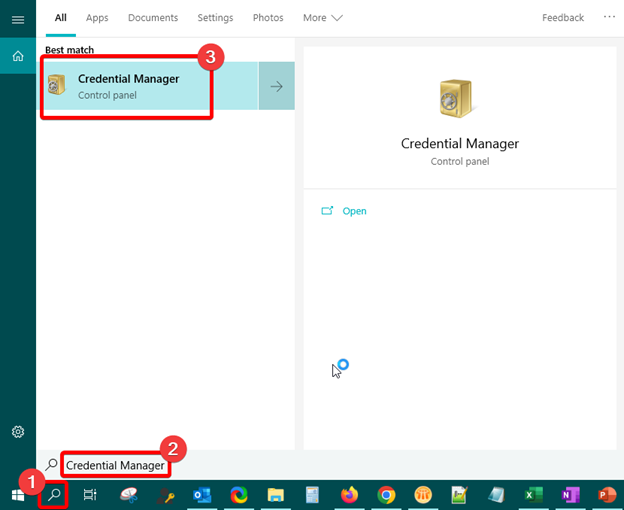
- From start menu, type Credential Manager in the search bar and select Credential Manager.
- Switch to the Windows Credentials tab.
You will find a list of stored credentials (For example:\\studprint or \\staffprint).
Expand each entry by clicking on the arrow to see the details. Once you find your UMPASS ID, click on the entry and remove the related credential.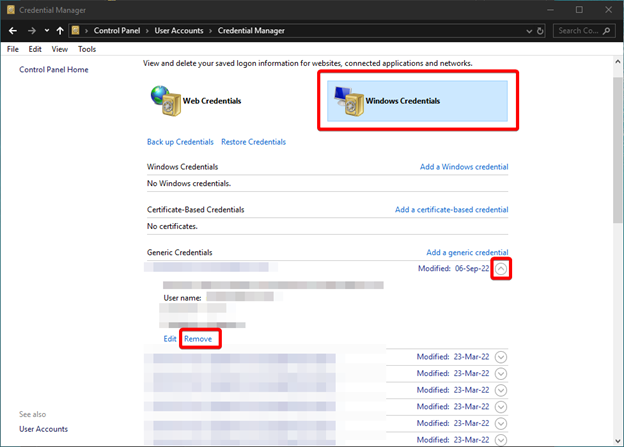 A confirmation prompt will be appeared and asking if you want to permanently delete the credential.
Confirm the removal by clicking Yes.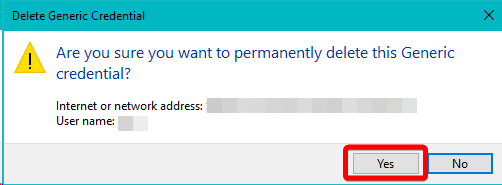
- Repeat Step 2 to remove UMPASS credentials.
- Once you have removed all the UMPASS credentials, you can close the Windows Credential Manager.